

Do you want to learn how to screenshot on an HP laptop? You are in the right place. Taking a screenshot is one of the easiest and most useful things you can learn. It helps you save what you see on your screen in just a few seconds.
You may want to save a payment receipt, an online order, a school note, or an error message. You may also want to share something with your family, friends, or work team. A screenshot makes all of this simple.
In this guide, you will learn how to screenshot on an HP laptop using different easy methods. Every step is simple and works on most HP laptops with Windows 10 and Windows 11. By the end of this guide, you will know which method is best for you.
What Is a Screenshot on an HP Laptop?
A screenshot is a picture of your laptop screen. It saves exactly what you see at that moment. You can keep it, edit it, print it, or send it to someone else.
People take screenshots every day. A student may save class notes. A worker may save a meeting screen. A shopper may save an order page. A gamer may save a great score. It is one of the fastest ways to save important information.
Learning how to screenshot on an HP laptop can save time. Instead of writing everything down, you can capture the screen with a few keys.
How to Screenshot on an HP Laptop Using the Print Screen Key
The Print Screen key is one of the easiest ways to take a screenshot. On most HP laptops, the key is called PrtSc or PrtScn. You can usually find it near the top-right side of the keyboard.
Press the PrtSc key once. This copies your whole screen to the clipboard. Next, open Paint, Microsoft Word, or another app. Press Ctrl + V to paste the screenshot. Then save the image where you want.
Some HP laptops need you to press Fn + PrtSc instead. If the Print Screen key does not work by itself, try this key combination. It solves the problem on many HP laptop models.
How to Screenshot on an HP Laptop Using Windows + Print Screen
If you want your screenshot to save by itself, this method is a great choice. You do not need to open Paint or paste the image first.
Press the Windows key + PrtSc at the same time. Your screen will become a little darker for a moment. This means the screenshot was taken successfully.
Your picture is saved automatically inside the Pictures folder. Open the Screenshots folder to find it. This is one of the fastest ways to learn how to screenshot on an HP laptop, especially if you take screenshots often.
How to Screenshot on an HP Laptop with the Snipping Tool
The Snipping Tool is a free app that comes with Windows. It lets you capture only the part of the screen you need. This is helpful when you do not want to save the whole screen.
Open the Start menu and search for Snipping Tool. Open the app and click New. Then choose the part of the screen you want to capture. You can select a rectangle, a free shape, one window, or the whole screen.
After taking the screenshot, you can write notes, highlight important parts, or crop the picture. When you finish, save the image to any folder on your laptop. This tool is simple, quick, and perfect for everyday use.
How to Screenshot on an HP Laptop Using Windows + Shift + S
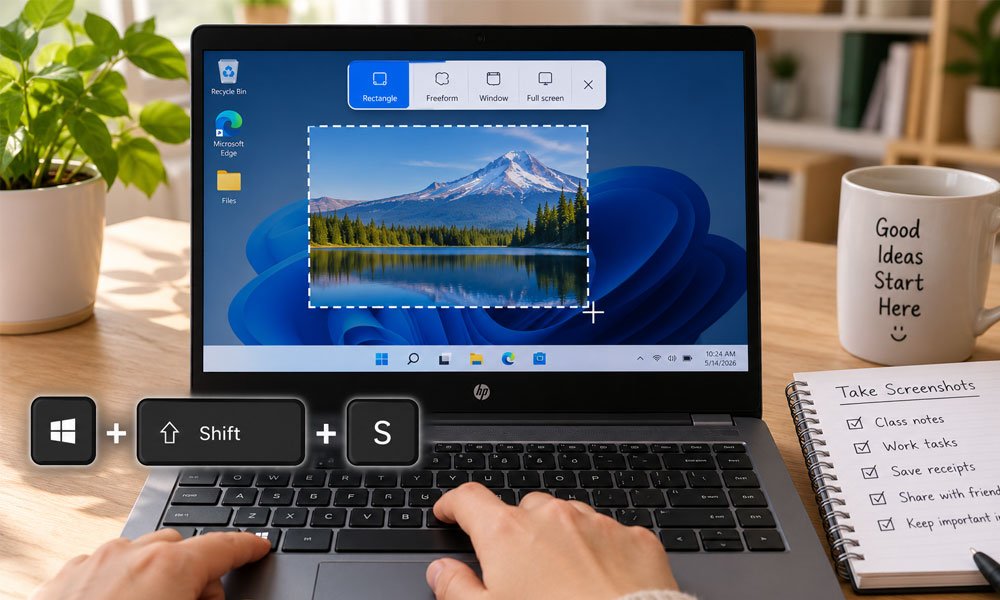
Another easy way to learn how to screenshot on an HP laptop is by using Windows + Shift + S. This shortcut opens the screenshot tool right away. You do not need to open any app first.
Press Windows + Shift + S together. Your screen will become a little darker. A small menu will appear at the top. You can choose Rectangle, Free-form, Window, or Full-screen.
After you take the screenshot, it is copied to the clipboard. Click the small message that appears on your screen. You can then save the picture, crop it, or add notes before saving it.
How to Screenshot Only One Window on an HP Laptop
Sometimes you only want to save one window instead of the whole screen. This is helpful when you are working with one program and do not want other windows to appear.
Click on the window you want to save. Then press Alt + PrtSc. This captures only the active window. It keeps your screenshot clean and easy to understand.
Open Paint, Word, or another app. Press Ctrl + V to paste the screenshot. Save it to your computer when you are done. This is another simple way to learn how to screenshot on an HP laptop.
Where Are Screenshots Saved on an HP Laptop?
Many people take a screenshot but cannot find it later. The save location depends on the method you use.
If you press Windows + PrtSc, Windows saves the picture in Pictures > Screenshots. If you use PrtSc or Alt + PrtSc, the screenshot goes to the clipboard. You must paste and save it yourself.
If you use the Snipping Tool, you can choose where to save the file. This makes it easy to keep your screenshots in folders for school, work, or personal use.
Why Is the Screenshot Button Not Working on an HP Laptop?
If your screenshot key does not work, do not worry. This is a common problem, and it is often easy to fix.
First, try pressing Fn + PrtSc. Some HP laptops need both keys. If that does not help, restart your laptop and try again. You should also check if your keyboard is working correctly.
If the problem is still there, update your keyboard drivers through Windows Update. You can also use the Snipping Tool while you fix the Print Screen key. This gives you another easy way to keep taking screenshots.
Best Tips for Taking Better Screenshots on an HP Laptop
Before taking a screenshot, close any windows you do not need. This keeps your picture clean and easy to understand.
Hide personal information before you capture your screen. This helps protect your privacy when you share the image with other people.
Save your screenshots with simple names like Homework, Receipt, or Meeting Notes. Use the PNG file type because it gives better picture quality. These small tips make your screenshots easier to find and use later.
Best Screenshot Tools for HP Laptop Users
Windows already includes great screenshot tools. The Snipping Tool is enough for most people because it is simple and free.
If you need more features, you can try apps like ShareX, Greenshot, Lightshot, or Snagit. These tools let you add arrows, boxes, text, and other simple edits.
Most people will never need extra software. The built-in Windows tools are fast, safe, and easy to use. They work well for school, work, and everyday tasks.
Bottom-Line
Now you know how to screenshot on an HP laptop in several easy ways. You can use the Print Screen key, Windows shortcuts, the Snipping Tool, or other simple methods. Each one is useful for different situations.
If you only need a full-screen picture, Windows + PrtSc is a great choice. If you want to capture only part of the screen, Windows + Shift + S is one of the best options. If you like editing your screenshots before saving them, the Snipping Tool is a perfect fit.
The more you practice these shortcuts, the easier they become. Soon, taking screenshots will feel natural. Whether you use your HP laptop for school, work, shopping, or fun, these simple methods will help you save and share important information in just a few seconds.
(FAQs)
Can I take a screenshot without the Print Screen key?
Yes. Press Windows + Shift + S or use the Snipping Tool. Both methods work without using the Print Screen key.
Why do I need the Fn key?
Some HP laptops use two functions on one key. Pressing Fn + PrtSc tells the laptop to use the screenshot feature.
How do I take a screenshot on Windows 11?
Windows 11 supports all the same shortcuts. You can use PrtSc, Windows + PrtSc, Alt + PrtSc, or Windows + Shift + S.
Where do my screenshots go?
Screenshots taken with Windows + PrtSc are usually saved in Pictures > Screenshots. Other methods may copy the picture to the clipboard until you save it.
How do I edit a screenshot after taking it?
You can open the picture in the Snipping Tool, Paint, or another photo editor. You can crop it, draw on it, or add text.
Can I take a scrolling screenshot?
Windows does not include this feature. You can use tools like ShareX or Snagit if you need to capture a long webpage.
How do I capture only part of my screen?
Press Windows + Shift + S. Then drag your mouse over the part you want to save.
Which screenshot method is the fastest?
Many people like Windows + Shift + S because it is quick and lets you choose exactly what you want to capture.
